If you've found the description of how to store your router configuration on a web server interesting, you'll probably enjoy the full article documenting the step-by-step solution including the web server configuration.
If you've found the description of how to store your router configuration on a web server interesting, you'll probably enjoy the full article documenting the step-by-step solution including the web server configuration.

If you have HTTP enabled on your router, you can use it to automate router reloads through web requests. To enable HTTP on the router, use the following commands:
ip http serverThe ip http access-class configuration command is vital - it limits the access to the web server on your router to well-defined IP addresses.
ip http access-class 90
access-list 90 permit network-management-ip-address
The Visual Basic script to reload the router is extremely simple (just save the following lines into a file called reload.vbs):Const RouterIP = "10.0.0.1" ' replace with router's IP addressAnd here is the equivalent PERL code for the open source community:
Const EnablePassword = "password" ' replace with enable password
Set WebRq = CreateObject("MSXML2.XMLHTTP")
WebRq.Open "GET","http://" & RouterIP & "/level/15/exec/reload/CR",false,"Username",EnablePassword
WebRq.Senduse LWP::UserAgent;By default, the username specified in the web request is ignored by the router and the password has to be the enable password. Of course, if you change the authentication scheme on the router with the ip http authentication configuration command, you'd use proper username/password pair in the HTTP request.
$routerIP = "10.0.0.1";
$enablePwd = "password";
$ua = LWP::UserAgent->new;
$req = HTTP::Request->new(GET => "http://$routerIP/level/15/exec/reload/CR");
$req->authorization_basic('', $enablePwd);
print $ua->request($req)->as_string;
In the Router Configuration Management … Too Good to be True?, the latest IP Corner article, I'm describing two of the router configuration management features introduced in Cisco IOS release 12.4: Configuration Change Notification and Contextual Configuration Diff utility. While the first one behaves as expected, the second one produced unexpected results under the stress test.
In a previous post, I've shown how you can log the changes in interactive user's privilege level. With the Cisco IOS Login Enhancements (introduced in IOS release 12.3(4)T, integrated in 12.4), you can also log all login successes and failures, even when using local user database (a similar functionality was previously achievable only when using central TACACS+ or RADIUS server).
The configuration commands to enable terminal access logging are login on-success log and login on-failure log. You can also specify that you want send SNMP traps in these circumstances (with the trap option) or that you only want to log every Nth attempt with the every n option.After you've configured terminal access logging, the router will start to generate syslog messages similar to the ones below (localport: 23 indicates the user was using telnet to access the router, localport: 80 that she was using HTTP):%SEC_LOGIN-5-LOGIN_SUCCESS: Login Success [user: test] [Source: 172.16.1.1] [localport: 23] at 19:10:27 UTC Sat Dec 2 2006If the user accesses the router through the console port, both the source and localport are set to all zeroes:
1d04h: %SEC_LOGIN-4-LOGIN_FAILED: Login failed [user: a] [Source: 192.168.0.10] [localport: 80] [Reason: Login Authentication Failed - BadPassword] at 19:35:53 UTC Sat Dec 2 2006%SEC_LOGIN-5-LOGIN_SUCCESS: Login Success [user: ] [Source: 0.0.0.0] [localport: 0] at 19:10:48 UTC Sat Dec 2 2006
Have you ever experienced a long wait between the moment you've configured a static route and its appearance in the IP routing table? The reason might be that Cisco IOS by default adjusts static routes every 60 seconds. IOS release 12.0(29)S (integrated in 12.3(10) and 12.4) fixes this problem with the ip route static adjust-time seconds global configuration command.
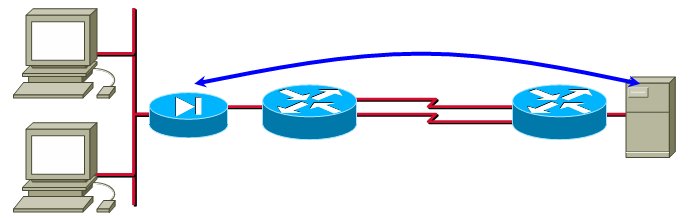
In designs with very low number of IP hosts, no per-destination load-sharing algorithm will work adequately. Consider, for example, an extranet design where a large number of IP hosts are NAT-ed to a single IP address which then accesses a single remote server.
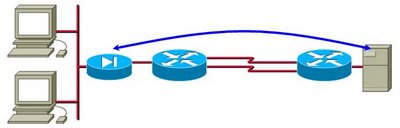
In this design, all the traffic flows between a single pair of IP addresses, making per-destination load-sharing unusable.
Cisco has addressed this problem in IOS release 12.4(11)T with per-port CEF load sharing, which extends the CEF hashing function to include source and/or destination TCP or UDP port.
The global configuration command that enables per-port CEF load-sharing is ip cef load-sharing algorithm [ include-ports [source] [dest] ] seed. To test it, use the show ip cef exact-route command, which now supports source and destination port numbers. For example:a1(config)#ip cef load-sharing algorithm include-ports source dest 22
a1#show ip cef exact-route 10.0.0.10 src-port 35 192.168.0.2 dest-port 80
10.0.0.10 -> 192.168.0.2 : Serial0/0/0.100 (next hop 172.16.1.2)
a1#show ip cef exact-route 10.0.0.10 src-port 36 192.168.0.2 dest-port 80
10.0.0.10 -> 192.168.0.2 : Serial0/0/0.200 (next hop 172.16.1.6)
a1#show ip cef exact-route 10.0.0.10 src-port 37 192.168.0.2 dest-port 80
10.0.0.10 -> 192.168.0.2 : Serial0/0/0.100 (next hop 172.16.1.2)
You could limit terminal access to a router with an access-class in line configuration command for a very long time (since, at least, IOS release 10.0). However, the access-class command only accepted standard access-lists, allowing you to restrict access solely based on source IP addresses. In the meantime, this feature quietly got upgraded to support extended access lists. In the IOS release 12.4, the command even accepts (undocumented !) named access lists.
These new features give you the ability to implement interesting policies, for example:The extended access-lists also provide logging functionality, making it possible to log every connection attempt to the router.For example, the configuration ...
- Telnet access is only allowed from the network management station.
- SSH access is allowed from anywhere within internal network
ip access-list extended TerminalAccess... would log any terminal access to the router with messages similar to the one below.
permit tcp host 10.0.0.2 any eq telnet log
permit tcp any any eq 22 log
deny tcp any any log
!
line vty 0 4
access-class TerminalAccess in%SEC-6-IPACCESSLOGP: list TerminalAccess denied tcp 10.0.0.3(1057) -> 0.0.0.0(23), 1 packet
%SEC-6-IPACCESSLOGP: list TerminalAccess permitted tcp 10.0.0.2(1058) -> 0.0.0.0(23), 1 packet
In my discussion of per-packet versus per-destination load sharing, I've relied on the "accepted wisdom" that out-of-order TCP packets reduce session performance (as a side note, out-of-order UDP packets are a true performance killer; just try running NFS with out-of-order packets).
Today I've discovered another huge show-stopper: stateful firewalls (read: almost everything in use today) might just drop out-of-order packets, resulting in TCP timeouts and retransmissions (and repeated timeouts will totally wreck the session throughput). Here's how Cisco devices handle this problem:
- PIX allows three out-of-order packets per TCP session (cannot be changed, but should be enough)
- You can configure out-of-order packet handling on ASA with the queue-lenght parameter of a tcp-map.
- Cisco IOS firewall (formerly known as CBAC) drops out-of-order packets until release 12.4(11)T where you can use the ip inspect tcp reassembly configuration command (and it looks like the zone-based firewall configuration is not yet supported).
Have you ever wanted to be notified when your router loses a specific route (for example, the default route toward the Internet)? In IOS release 12.4T you can do it with a combination of Enhanced Object Tracking and Embedded Event Manager 2.2.As the first step, you configure a track object that will monitor the state of an IP route with the track ip route command.
track 100 ip route 0.0.0.0 0.0.0.0 reachabilityAfter the track object has been created, you can monitor its state with an EEM applet (in the configuration example it only generates a syslog message, but you could also send an email to the network administrator).event manager applet TrackRoute_0.0.0.0And now a test run ...
event track 100 state any
action 1.0 syslog msg "route is $_track_state"a1#conf tAs you can see from the example, there is a significant delay before the track object responds to a route change. You can adjust this delay with the track timer ip route seconds global configuration command (default is 15 seconds).
Enter configuration commands, one per line. End with CNTL/Z.
a1(config)#ip route 0.0.0.0 0.0.0.0 loopback 0
a1(config)#^Z
01:08:47: %SYS-5-CONFIG_I: Configured from console by console
01:08:51: %HA_EM-6-LOG: TrackRoute_0.0.0.0: route is up
a1#conf t
Enter configuration commands, one per line. End with CNTL/Z.
a1(config)#interface loopback 0
a1(config-if)#shutdown
01:09:10: %SYS-5-CONFIG_I: Configured from console by console
01:09:11: %LINK-5-CHANGED: Interface Loopback0, changed state to administratively down
01:09:21: %HA_EM-6-LOG: TrackRoute_0.0.0.0: route is down
The IP Service Level Agreement (SLA) measurement feature of Cisco IOS is extremely SNMP-oriented. For example, there is no easy way to generate a logging message when an SLA operation fails (or exceeds the threshold). However, Embedded Event Manager reading SNMP variables can help you get there.Before checking the status of an SLA operation, you need to schedule it (remember the SLA entry#, you'll need it when forming the SNMP object ID). For example:
ip sla 42When the SLA measurement has been defined, create an EEM applet to monitor the status of the rttMonCtrlOperTimeoutOccured variable in the CISCO-RTT-MON MIB (note that the SLA entry# is the last number in the OID). The EEM applet triggers on value 1 (true: timeout) and re-arms on value 2 (false: no timeout).
icmp-echo 172.16.1.2 source-interface Serial0/0/0.100
timeout 500
threshold 100
frequency 1
ip sla schedule 42 life forever start-time nowevent manager applet SLA_TimeoutSimilarly, you can write an applet that triggers on SLA response time being over threshold by monitoring SNMP OID 1.3.6.1.4.1.9.9.42.1.2.9.1.7.sla# (the rttMonCtrlOperOverThresholdOccurred variable).
event snmp oid 1.3.6.1.4.1.9.9.42.1.2.9.1.6.42 get-type exact entry-op eq entry-val 1 exit-op eq exit-val 2 poll-interval 5
action 1.0 syslog msg "Ping to 172.16.1.2 timeout"
Note: this article is part of You've asked for it series.
EIGRP computes its composite metric from five parameters, one of them being interface load, therefore raising the theoretical possibility of having route metrics that include interface load. However, tweaking EIGRP K-values with the metric weights command to include interface load in metric calculations is highly discouraged - every change in interface load could lead to network instability. Even worse, whenever an interface load would increase, the increased composite metric of the afftected routes in EIGRP topology table would cause them to enter active state (and the router to start the DUAL algorithm trying to find more optimum paths toward the destination).
To make the whole idea even more impractical, EIGRP does not scan the interface load (and other parameters influencing the metric) on periodical basis, but only when triggered by a change in network topology (for example, interface or neighbor up/down even).
Note: this article is part of You've asked for it series.
When pinging a directly-attached host (end-station) from a router, it's quite common to lose the first reply, as shown in the following example (the same symptom might occur when pinging a remote host that has been inactive).
a2#ping 10.0.0.10

Type escape sequence to abort.
Sending 5, 100-byte ICMP Echos to 10.0.0.10, timeout is 2 seconds:
.!!!!
Success rate is 80 percent (4/5), round-trip min/avg/max = 1/1/4 ms
Actually, it's not the reply that was lost, the request was never sent out. Whenever a router has to send a packet to the next-hop (or directly attached destination) that has no entry in the ARP table, the ARP request is sent out, but the original packet is unconditionally dropped.
You can easily test this behavior in the lab (live networks are too busy for that) by debugging ARP requests while performing the ping command:
a2#show arp
Protocol Address Age (min) Hardware Addr Type Interface
Internet 10.0.0.6 - 0016.c876.8b38 ARPA FastEthernet0/0
Internet 10.0.0.5 0 0016.c7fe.f150 ARPA FastEthernet0/0
a2#debug arp
ARP packet debugging is on
a2#ping 10.0.0.10
Type escape sequence to abort.
Sending 5, 100-byte ICMP Echos to 10.0.0.10, timeout is 2 seconds:
.!!!!
Success rate is 80 percent (4/5), round-trip min/avg/max = 1/1/4 ms
08:26:21: IP ARP: creating incomplete entry for IP address: 10.0.0.10 interface
FastEthernet0/0
08:26:21: IP ARP: sent req src 10.0.0.6 0016.c876.8b38,
dst 10.0.0.10 0000.0000.0000 FastEthernet0/0
08:26:21: IP ARP: rcvd rep src 10.0.0.10 000c.29a7.8ade, dst 10.0.0.6 FastEthernet0/0
TACACS+ protocol introduced with the IOS AAA architecture had great provisions for customizing the whole login process (user-defined banners, prompts ...). Unfortunately, it never really took off and most AAA solutions deployed today rely on RADIUS servers that cannot control the login process itself (the RADIUS server can only check the username/password pair for validity).
To change the login prompts when using RADIUS servers, use the aaa authentication [banner|fail-message|password-prompt|username-prompt] text configuration command.For example, to introduce meaningful prompts when using one-time password solution, you could use something similar to this configuration:aaa authentication banner #Note: the texts specified with the password-prompt and username-prompt options are one-line texts delimited with quotes, the parameters of the banner and fail-message options are multi-lined texts delimited with any character.
Access to this router is protected with one-time passwords.
Send an e-mail to admin@nowhere.net if you need access.
#
aaa authentication fail-message #
Login failed. Wait at least 30 seconds and retry
#
aaa authentication password-prompt "Enter your PIN + one-time password:"
aaa authentication username-prompt "Enter your username:"
Cisco IOS allows you to configure the ip default-gateway, but most often it looks like this setting is ignored. In fact, the default gateway is only used when an IOS device does not perform IP routing (acts like an IP host), for example, when you configure a Catalyst switch for layer-2 switching ... or when you disable IP routing on a router with no ip routing configuration command. In both cases, the show ip route command (or show ip redirects on some Catalyst switches) displays the default gateway and any ICMP redirects received from directly attached routers:
b2#show ip route
Default gateway is 192.168.0.5

Host      Gateway         Last Use    Total Uses  Interface
1.2.3.4   192.168.0.10        0:00            13  FastEthernet0/0
Note: disabling IP routing on a router makes perfect sense if you use it as a (reverse) terminal server or telnet-to-X.25 gateway.
In a previous post, I've described how you could generate a (almost) continuous ping from a router using the extended ping command. While that approach is extremely simple to implement, it ties up a line (and if you're working from the console, it's highly impractical). You could get the same results (as Tom has already pointed out) using IP SLA feature of Cisco IOS. Configure the ping request with commands similar to these:
ip sla 100To start the ping, use the ip sla schedule 100 life forever start-time now configuration command, to stop it, no ip sla schedule 100 command. When using IP SLA ping, you can trigger Embedded Event Manager applets to report ping failure (similar to the technique described in this post) or read the ping results from SLA MIB with SNMP.
icmp-echo 172.16.1.2
timeout 500
frequency 3
Note: In IOS release 12.3(14)T, the ip sla command replaced the rtr command. To use this technique in IOS release 12.3 or lower, use the rtr configuration command.
In a comment to my post describing how to make a router into a primary DNS server, one of the readers noted that you could easily overload a router doing that ... and he's obviously right.
Apart from having too many valid DNS requests for the zone the router is responsible for, the observed behavior could be spam-related. Just a few days ago when I've discussed the router-based DNS server with my security engineers, they've pointed out that a lot of spammers perform regular DNS attacks trying to poison the DNS cache of unpatched open caching DNS servers.
Obviously, a router is no match in raw CPU power to a high-end server, so even when running the authoritative server on the router, it might not be a bad idea to use a DNS server of your ISP as the secondary DNS and list only the ISP's DNS server in the NS records for your zone. This would deflect most of the traffic (as nobody would know your router is acting as a DNS server), but I would still apply an inbound access-list allowing only DNS queries from the secondary name server on the Internet-facing interface.
Alternatively, you could protect the router with Control Plane Policing and drop excessive DNS request packets, but that would affect the queries you should respond to as well.
If you want to execute IOS show commands periodically (for example, to monitor router status or take snapshots of routing tables), you can combine new output redirection features introduced in IOS release 12.2T in an Embedded Event Manager (EEM) applet. For example, to store the brief interface status into a file on an FTP server, use the following EEM applet:
event manager applet SaveInterfaceStatusNotes:
event timer watchdog name SaveIfStat time 60
action 1.0 cli command "show ip interface brief | redirect ftp://username@password:host/path"
action 2.0 syslog msg "Interface status saved"
- The timer watchdog EEM event defines a recurring event triggered every X seconds.
- Output of a show command can be redirected only to a TFTP or FTP server, redirection to a web (HTTP) server does not work yet.
- The syslog action is configured for debugging purposes only and can be removed in production environment.
- More complex functionality (for example, sending show command output in an email) can be implemented with help of Tcl EEM policies
If you use UDP-based syslog servers, you might have noticed that they miss a message or two generated during a router reload (particularly when the syslog server is on a directly connected LAN). The reason is simple - when the first message is sent to the syslog server, its MAC address is not yet in the router's ARP cache and the message is dropped. To prevent the message loss, you can use the logging server-arp configuration command (introduced in IOS release 12.3T), making sure that the router sends ARP request to the configured syslog server(s) before generating the first syslog messages.
Note: this issue does not occur when using TCP as the syslog transport mechanism.
The easiest way to remove all settings from an interface is to use the default interface configuration command. For example, if you've configured Frame Relay interface with subinterfaces ...
interface Serial0/0/0... and have erase all interface-specific configuration, the ...
no ip address
encapsulation frame-relay
load-interval 60
!
interface Serial0/0/0.100 point-to-point
bandwidth 2000
ip address 172.16.1.1 255.255.255.252
ip load-sharing per-packet
ip ospf cost 50
frame-relay interface-dlci 100... gets you there. As you can see, after the configuration change, the main interface has no IP address and the subinterface is deleted.
rtr(config)#default interface serial 0/0/0
Building configuration...

Interface Serial0/0/0 set to default configurationa1#show ip interfaces brief
Interface IP-Address OK? Method Status Protocol
... non-relevant lines deleted ...
Serial0/0/0 unassigned YES TFTP up up
Serial0/0/0.100 unassigned YES manual deleted down
The easiest way to remove all settings from an interface is to use the default interface configuration command. For example, if you've configured Frame Relay interface with subinterfaces ...
interface Serial0/0/0... and have erase all interface-specific configuration, the ...
no ip address
encapsulation frame-relay
load-interval 60
!
interface Serial0/0/0.100 point-to-point
bandwidth 2000
ip address 172.16.1.1 255.255.255.252
ip load-sharing per-packet
ip ospf cost 50
frame-relay interface-dlci 100... gets you there. As you can see, after the configuration change, the main interface has no IP address and the subinterface is deleted.
rtr(config)#default interface serial 0/0/0
Building configuration...

Interface Serial0/0/0 set to default configurationa1#show ip interfaces brief
Interface IP-Address OK? Method Status Protocol
... non-relevant lines deleted ...
Serial0/0/0 unassigned YES TFTP up up
Serial0/0/0.100 unassigned YES manual deleted down
It's a bit embarrassing: I've posted a hint on how to execute commands after a router reload and Aamer figured out something I've wanted to have for years: the ability to automatically start debugging after the router reload.For example, to enable debugging of incoming SSH connections, use the following EEM applet:
event manager applet EnableDebugging
event syslog occurs 1 pattern "%SYS-5-RESTART"
action 1.0 cli command "enable"
action 2.0 cli command "debug ip ssh"
Recently I was trying to figure out what the various port states reported by Nmap really mean. This is what's actually going on:
- If a packet is intercepted by a router's access-list, the router sends back an ICMP administratively prohibited packet. This is reported as filtered port by Nmap (and probably as stealth port by some other scanners).
- If you do a TCP SYN scan of a router and the scanned port is not active, the router sends back TCP RST packet. This is reported as closed port.
- If you perform a UDP scan of a router, the router sends back ICMP port unreachable message if the UDP application is not active. This is reported by Nmap as filtered port (even though in most cases it should be equivalent to closed TCP port).
- In some cases, the router simply doesn't reply to UDP scans (for example, if you scan the discard service). This is reported as Open¦Filtered (as the scanner cannot reliably determine whether the probe was dropped due to a filter or simply not replied to).
Note: In any case, UDP scans are way more unreliable than TCP scans due to connectionless nature of UDP.
Below you'll find the debugging outputs for the most common conditions:
Successful TCP scan
Debugged with debug ip tcp packettcp0: I LISTEN 172.16.10.34:49620 172.16.0.1:80 seq 2116160324
OPTS 4 SYN WIN 1024
tcp0: O SYNRCVD 172.16.10.34:49620 172.16.0.1:80 seq 3992162774
OPTS 4 ACK 2116160325 SYN WIN 4128
tcp0: I SYNRCVD 172.16.10.34:49620 172.16.0.1:80 seq 2116160325
RST WIN 0TCP scan of a closed port
Debugged with debug ip tcp packettcp0: I LISTEN 172.16.10.34:50434 172.16.0.1:80 seq 1431055709
OPTS 4 SYN WIN 1024
TCP: sent RST to 172.16.10.34:50434 from 172.16.0.1:80TCP scan blocked by an access-list
Debugged with debug ip icmpICMP: dst (172.16.0.1) administratively prohibited unreachable sent to 172.16.10.34UDP scan of an unreachable port
Debugged with debug ip udp and debug ip icmpUDP: rcvd src=172.16.10.34(37312), dst=172.16.0.1(8), length=8
ICMP: dst (172.16.0.1) port unreachable sent to 172.16.10.34
In a previous post I've been writing about the inability to clean the ARP cache due to cached CEF adjacencies. As it turns out, this behavior has another side effect: the router will automatically refresh all ARP entries (and CEF adjacencies) as they expire from the ARP cache. This might become a problem on high-end devices with a lot of directly connected hosts if you set the arp timeout to a low value.
Here is a sample debugging printout verifying this behavior:Jun 7 16:34:49: IP ARP: sent req src 192.168.0.1 0016.c7fe.f150,dst 192.168.0.2 000c.293a.b455 FastEthernet0/0.100
Jun 7 16:34:49: IP ARP: rcvd rep src 192.168.0.2 000c.293a.b455, dst 192.168.0.1 FastEthernet0/0.100
Jun 7 16:34:49: IP ARP: creating entry for IP address: 192.168.0.2, hw: 000c.293a.b455
When I was testing the inspection of router-generated traffic, I wanted to block and log all incoming traffic (apart from inspect-generated conduits, obviously) with a simple access-list:
access-list 102 deny ip any any logUnfortunately, the port numbers in the logging printout were always zero:%SEC-6-IPACCESSLOGP: list 102 denied udp 10.0.0.1(0) -> 192.168.1.3(0), 1 packetThe reason for this behavior is very simple: unless a line in the IP ACL matches on the layer-4 port numbers, the router does not inspect them; the log action thus has no port number to show in the syslog printout.
To fix the printout, you have to force the router to inspect the layer-4 port numbers. If you still want to block-and-log all traffic, the minimum access-list achieving this goal is the following:access-list 102 deny udp any gt 0 any gt 0 log
access-list 102 deny tcp any gt 0 any gt 0 log
access-list 102 deny ip any any
In my previous post, I've described how you can get a very clean configuration with no holes in your Internet-facing access-list if you have IOS release that supports inspection of router-generated traffic. As it turns out, my solution was not complete - you could not ping from the router. On top of inspecting UDP and TCP traffic (as is usually done), you also have to inspect ICMP traffic that the router uses for pings.
Furthermore, if you use any protocols that have separate control and data sessions (for example, FTP, H.323 or SIP), you have to list them before tcp or udp keywords, otherwise their control streams will not be inspected and there will be no provision for data sessions.ip inspect name Internet ftp
ip inspect name Internet h.323 router-traffic
ip inspect name Internet sip router-traffic
ip inspect name Internet tcp router-traffic
ip inspect name Internet udp router-traffic
ip inspect name Internet icmp router-traffic
!
interface FastEthernet0/0
ip access-group Internet in
ip inspect Internet out
!
ip access-list extended Internet
deny ip any any
For whatever reason, a lot of people have the impression that the wildcard bits in the OSPF network statement have to be the inverse of the interface subnet mask. For example, if you have configured ip address 192.168.1.2 255.255.255.240 on an interface, they would enter network 192.168.1.2 0.0.0.15 in the OSPF configuration ... and obviously use one network statement per interface.
In reality, the network statements work like simple IP access-list: whenever an interface IP address matches the network statement, the interface is put into the selected area. The IOS is also pretty helpful recently: the network statements are automatically sorted from least-specific to most-specific and (like with the access lists) the first match stops the search.
In my network implementations, I use the network statements in three different ways:
- If I have to assign a specific interface into an area, I would always use network x.y.z.w 0.0.0.0 area n;
- If the area address ranges are nicely assigned (which also helps immensely when you have to start summarizing), you can use a single network statement to cover the whole area. If, for example, area 3 has address range 10.1.16.0/20, use network 10.1.16.0 0.0.15.255 area 3;
- If the router has all interfaces in a single area, I would almost always use network 0.0.0.0 255.255.255.255 area area-id (unless there is an extremely good reason that some interfaces should not be seen by the OSPF process).
In response to the post detailing router response to port scans, one of my readers asked an interesting question:
“I was wondering if there was a way to prevent the router from sending those TCP RST packets administratively prohibited ICMP messages back to scanners for TCP and UDP respectively. I basically want my router to drop all packets period without replying back in any way, shape, form, or fashion.”Here's how you do it:The relevant parts of router configuration are included below:
- No TCP RST packets should be sent as responses to port scans. Inbound access list dropping all IP packets achieves that.
- Outbound traffic, both from the protected LAN as well as from the router itself (ping, telnet, DNS, NTP ...) should be allowed. Configure ip inspect with router-traffic option.
- Disable generation of ICMP unreachables with the no ip unreachables interface configuration command.
ip inspect name Internet tcp router-traffic
ip inspect name Internet udp router-traffic
ip inspect name Internet icmp router-traffic
!
interface FastEthernet0/0
 ip address a.b.c.d x.y.z.w
 ip access-group Internet in
 no ip unreachables
 ip inspect Internet out
!
ip access-list extended Internet
 deny ip any any
Note: This article is part of You've asked for it series.